
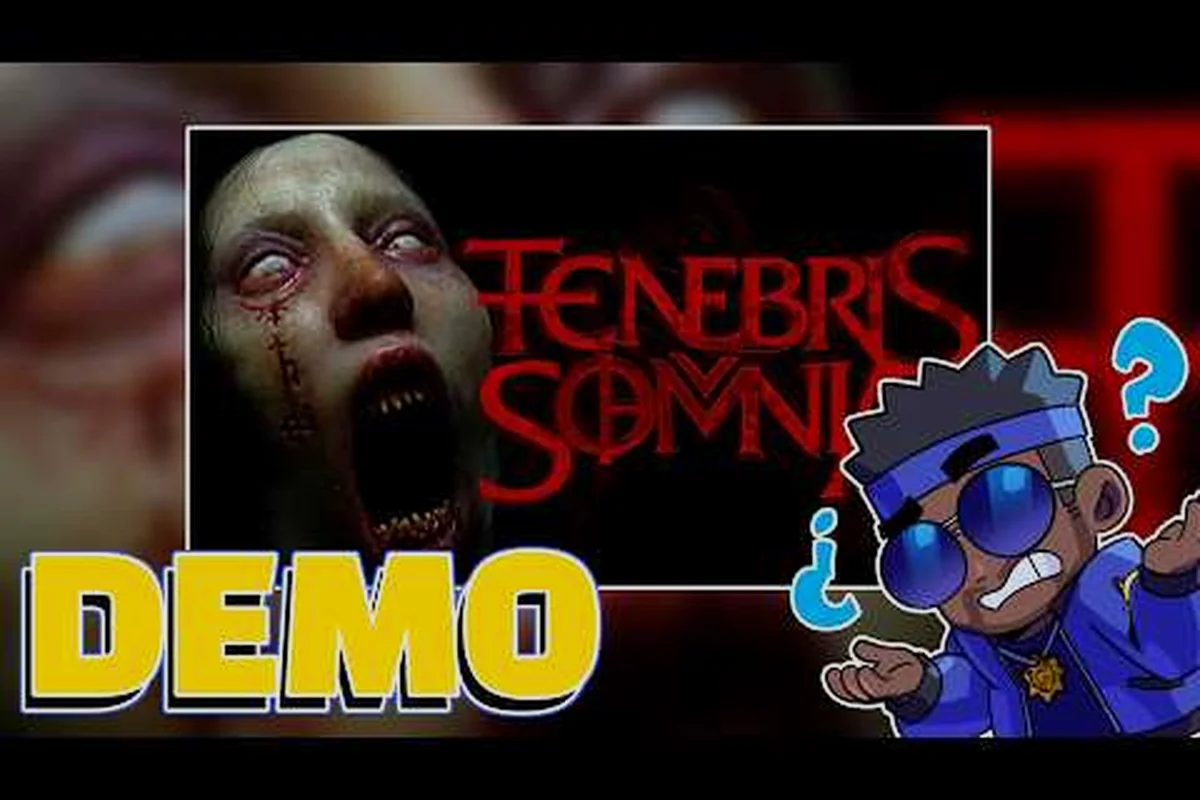
Tenebris Somnia drops you into a fragmented 2D world of broken glass, occult books, and live-action nightmares, which is exactly why most new players freeze up before they even reach the first safe room. This Tenebris Somnia best guide trims the early-game chaos down to the four things that actually matter: the PC requirements that decide whether you can run it smoothly, the controls that keep Julia alive under pressure, the display settings that protect the retro-pixel mood, and the starter survival habits that prevent one-hit wipes. Get the setup right on day one and the rest of the campaign stops feeling like a guessing game.
Tenebris Somnia PC Requirements and Performance Setup
Before tweaking in-game options, confirm your rig can actually handle the dual-style presentation. Tenebris Somnia is a 2D adventure on the surface, but the live-action cinematics, lighting passes, and pixel-art post-processing can spike CPU and GPU usage in ways that surprise low-end hardware. The official Tenebris Somnia Steam page lists the minimum and recommended specs, and treating the recommended tier as the real target is the safest call for new players.
Minimum vs Recommended Specs
The table below summarizes the official thresholds so you can map your build against them at a glance. Treat the recommended column as the practical baseline, because the live-action cutscenes encode high-bitrate video that benefits from a modern decoder and extra RAM headroom.
| Component | Minimum | Recommended | Why It Matters |
|---|---|---|---|
| OS | Windows 10 (64-bit) | Windows 10/11 (64-bit) | Older builds may lack required media codecs |
| Processor | Intel Core i5-7400 / AMD Ryzen 5 1600 | Intel Core i7-9700 / AMD Ryzen 5 3600 | Live-action video decoding is CPU-bound |
| Memory | 8 GB RAM | 16 GB RAM | Cinematic buffers reserve extra memory |
| Graphics | NVIDIA GTX 1050 / AMD Radeon RX 560 | NVIDIA RTX 2060 / AMD RX 5700 | Pixel art + light blooms scale with GPU |
| DirectX | Version 11 | Version 12 | Smoother shader pipeline for horror lighting |
| Storage | 15 GB available | SSD with 15 GB available | HDD causes stutter during 2D-to-live-action swaps |
If your machine sits between the two columns, drop the resolution to 1080p, cap the frame rate at 60, and disable any background overlays (Discord screen share, browser capture, RGB software) before launching. Community testing reported by players on the Steam forums suggests that closing the Epic Games launcher and any RAM-heavy browser tabs can recover roughly 8-12% frame-time headroom on mid-range builds.
In-Game Display Settings That Actually Help
Most retro-style horror adventures expose only a handful of toggles, and Tenebris Somnia is no exception. The goal is to keep the 2D layers crisp while letting the live-action scenes breathe, and that balance depends more on window mode and V-Sync than on fancy post-processing.
| Setting | Recommended Value | Practical Reason |
|---|---|---|
| Resolution | Native 1080p or 1440p | Pixel art scales cleanly at integer multiples |
| Window Mode | Borderless Fullscreen | Prevents alt-tab stutter during live-action scenes |
| V-Sync | On | Eliminates screen tearing in pixel-perfect corridors |
| Frame Cap | 60 FPS | Cinematics are authored at 24-30 FPS; higher caps add no benefit |
| Brightness | +5 to +10 above default | Dark rooms hide key items in the 2D layer |
| CRT Filter | Off for first playthrough | Filters obscure item outlines in tight puzzle rooms |
If you are running the game on a Steam Deck or handheld PC, the same rules apply, just swap full resolution for the device's native 1280x800 panel and cap at 40 FPS to extend battery life. For a deeper breakdown of handheld performance, the Tenebris Somnia horror game guide walks through per-platform tuning.
Controller Layouts and Input Choices for Tenebris Somnia
Tenebris Somnia is a precision adventure, which means a sloppy control scheme is the single fastest way to die. The game supports keyboard and mouse, Xbox-style controllers, and PlayStation pads, but the default mapping is not always the most comfortable option. Spend ten minutes in the first safe room re-binding inputs and you will save hours of frustration later.
Keyboard and Mouse vs Gamepad
Neither input method is strictly better, because the action switches between 2D exploration, menu navigation, and live-action reaction prompts. The honest answer is that the best input is the one you can use without looking down, and that usually means a hybrid setup.
| Input Type | Strengths | Weak Spots | Best For |
|---|---|---|---|
| Keyboard + Mouse | Fast inventory, precise cursor, quick quickslot swaps | Awkward during action prompts and dodge windows | Players who came from Resident Evil classics |
| Xbox-Style Gamepad | Comfortable stick movement, natural trigger prompts | Slower inventory management | Couch players and Steam Deck users |
| PlayStation DualSense | Adaptive triggers add tension in horror beats | Driver quirks on Windows without Steam Input | Players who own a PS5 and stream to PC |
| Steam Input Mapping | Layered binds, gyro aim, touch menu shortcuts | Setup overhead | Tinkerers who want a custom control profile |
A practical community-favorite mapping assigns movement to the left stick, dodge to the right bumper, interact to the bottom face button, and inventory to the pause button. The left trigger becomes a quick-swap, which lets you cycle healing items without opening a menu while a creature is closing in. This layout mirrors the conventions in classic survival horror, and the muscle memory transfers cleanly.
Key Rebinds Worth Making on Day One
The default keyboard mapping places interact on a key that sits near the movement cluster, which leads to misfires when panic sets in. Rebind Interact to a thumb-friendly key, move Inventory somewhere that cannot be hit by accident, and reserve a side button for Quick-Heal. Treat these as the three non-negotiable rebinds that every new player should make before the first chase sequence. If you are stepping into the demo first, the Tenebris Somnia demo walkthrough covers how the early rebinds pay off in the opening hour.
Display Settings, Audio, and Accessibility for a Smoother First Night
Graphics and audio carry half the horror in Tenebris Somnia, and a few well-chosen tweaks make the experience more readable without draining the mood. The trick is to lean on the 2D layer's strong color contrast, then let the live-action sequences land at full volume so their silence contrasts hit harder.
Visual Tweaks for Readability
| Setting | Best Pick | Player Benefit |
|---|---|---|
| Pixel Scaling | Integer (2x or 3x) | Prevents blur on CRT-era sprites |
| Scanline Effect | Off for first run | Scanlines hide blood splatter cues |
| Colorblind Mode | Protanopia preset | Helps red gloop stand out from brown wood |
| Motion Blur | Off | Preserves reaction windows during chases |
| Subtitle Size | Large | Live-action dialogue has low-volume whispering |
Many players reported by community testing actually prefer the base pixel-perfect presentation because the silhouette readability of each enemy depends on clean sprite edges. If your monitor supports it, switch to a 4:3 or 5:4 aspect ratio for the 2D layer, since the original 8-bit compositions were authored in those ratios and the framing improves noticeably.
Audio Cues You Should Learn Early
Horror sound design is not decoration here. Footstep patterns tell you which enemy variant is approaching, ambient drones shift when you cross a safe-room threshold, and the live-action scenes use stereo pans to direct your attention. Turn the master volume up to roughly 80%, keep music near 50% so the SFX layer stays dominant, and wear headphones whenever possible. The directional audio in the live-action cinematics is mixed for a stereo image, and speakers flatten the cues that warn you about a creature entering from off-screen.
Starter Tips: Surviving the First Hour in Tenebris Somnia
Survival in Tenebris Somnia is not about reflexes, it is about preparation. The first hour is generous with resources, but it punishes players who sprint past side rooms, ignore notes, or burn healing items the moment their health bar flashes. Treat the opening segment as a tutorial disguised as a story, and the rest of the campaign will breathe easier.
Inventory and Resource Management
The inventory grid is small, and every slot counts when a creature is closing in. A common new-player mistake is hoarding every scrap, which leaves no room for a key item mid-puzzle. The pragmatic approach is to treat healing items as a finite pool, and weapon durability as a warning rather than a verdict.
| Resource | Rule of Thumb | Mistake to Avoid |
|---|---|---|
| Healing Items | Save 2 for scripted deaths | Using one after every minor hit |
| Ammo / Throws | Reserve 3 for boss patterns | Burning all on trash mobs |
| Key Items | Clear inventory space before pickup | Refusing to drop a stack of minor loot |
| Notes / Lore | Read on first encounter | Skipping because you are in a hurry |
| Save Crystals | Use at every safe room | Waiting for a "better" moment |
A reliable habit is to empty your inventory at every safe room, then re-fill it with the four most useful items for the next stretch. The game's puzzle design rewards players who stay light, because backtracking through locked doors is much faster when you are not menuing to drop junk.
Combat Basics That Save Runs
Combat in Tenebris Somnia is deliberately clunky on purpose, because the awkwardness is part of the horror. Shots are slow, melee has commitment frames, and every weapon has a unique recoil pattern. Lean into that design instead of fighting it.
-
Stagger first, then strike: Most early enemies can be stunned by a single aimed throw, which opens a free melee window.
-
Aim for legs: Slowing a creature is worth more than raw damage because it gives you room to retreat.
-
Use the environment: Doors, breakable glass, and oil trails are scripted tools, not set dressing. Lure an enemy into a flammable patch and you skip a multi-minute chase.
-
Never stand still: The pixel-art camera frames a fixed zone, but creatures can flank from the edges. Tap the dodge button to reset position after every encounter.
-
Listen for the audio dip: A sudden drop in ambient music means a scripted horror beat is about to happen. Brace for a jump scare or a forced chase.
These habits come straight from the early Tenebris Somnia tips circulating in the community, and they translate directly into the mid-game. For a fuller breakdown of mid-game pacing, the Tenebris Somnia beginner guide expands on the resource rules above.
Progression Path: From First Safe Room to First Boss
The campaign is structured around safe rooms, scripted horror set pieces, and a handful of boss fights that gate the next chapter. Skipping a safe room is the single most common early-game mistake, because the scripted saves are spaced so that dying without one can send you back fifteen minutes. Treat each safe room as a checkpoint, resupply there, read the notes on the wall, and save before opening the next door.
How to Read the Map and Decide Where to Go
| Map Signal | Meaning | Player Action |
|---|---|---|
| Red gloop on floor | Story-critical path | Follow until the next safe room |
| Glowing item on shelf | Optional resource | Pick up if inventory has space |
| Locked door with symbol | Backtracked later | Memorize, return with the right key |
| Dark room with no light source | Enemy ambush zone | Light a flare or throw a distraction |
| White-painted archway | Live-action trigger | Save first, then step through |
A common community-reported pattern is that the live-action arches always sit one room before a boss gate. Saving before stepping through gives you a clean reset point in case the cinematic ends with an immediate enemy encounter. Players who skip the save frequently lose the next ten minutes of progress, which is the kind of setback that turns a fun first session into a frustrated one.
When to Push Forward vs When to Backtrack
The general rule is to backtrack whenever you are carrying more than five unexamined notes or three full healing stacks, because the next zone will demand the inventory space. Push forward whenever you have already used a save crystal in the current chapter, because the scripting assumes you reached the next checkpoint. This rhythm is what experienced players call the safe-room loop, and it is the single biggest factor in completing the first chapter without a full restart.
Frequently Asked Questions
What are the official Tenebris Somnia PC requirements?
The official Steam page lists a 64-bit Windows 10 baseline with an Intel Core i5-7400 or AMD Ryzen 5 1600, 8 GB RAM, and an NVIDIA GTX 1050 or AMD Radeon RX 560, while the recommended tier targets an Intel Core i7-9700 or AMD Ryzen 5 3600, 16 GB RAM, and an NVIDIA RTX 2060 or AMD RX 5700. Meeting the recommended column is the practical floor for smooth cinematic playback.
Is Tenebris Somnia better played with a controller or keyboard?
Both inputs work, and the best Tenebris Somnia guide recommendation is to use whichever scheme lets you rebind Interact, Inventory, and Quick-Heal to comfortable buttons. Keyboard and mouse is faster for inventory management, while a gamepad wins during cinematic reaction prompts and chase sequences.
How long does the Tenebris Somnia demo last?
According to community reports, the demo covers roughly the first 45-60 minutes of the campaign and ends at a scripted safe room before the first live-action boss gate. It is long enough to teach the core combat loop, inventory rules, and audio-cue habits.
What beginner tips help most in the first hour of Tenebris Somnia?
Save at every safe room, keep at least two healing items in reserve, read notes on first contact, and use environmental hazards instead of burning ammo. These Tenebris Somnia tips form the baseline routine that carries players into the second chapter.
Does Tenebris Somnia run on Steam Deck or low-end laptops?
Yes, the game runs on Steam Deck when capped at 40 FPS and 1280x800 with V-Sync on. Low-end laptops should target the 1080p medium preset and close background apps, since the live-action cinematics are the main performance bottleneck on integrated graphics.