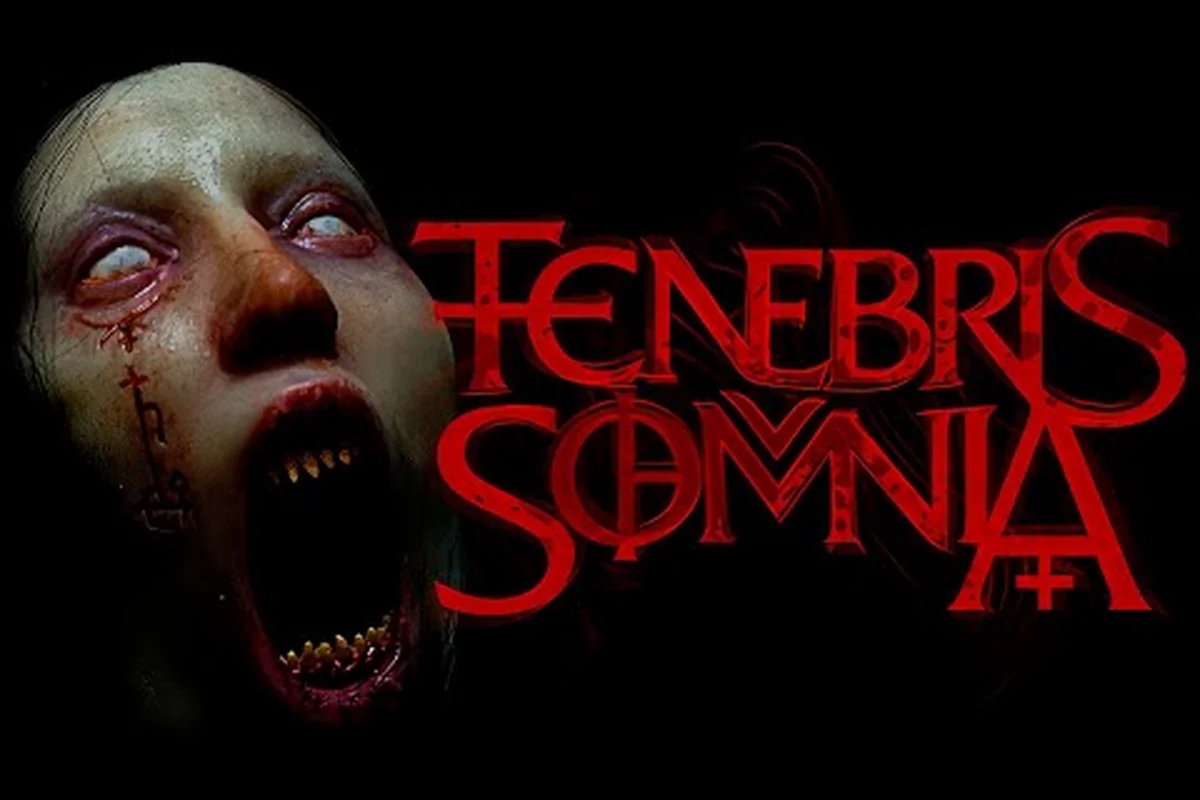
This Tenebris Somnia Xbox guide covers the steps that matter when you boot the retro horror adventure on Series X or Series S, because the pixel art and live-action hybrid looks deceptively simple until a 16-bit chase sequence pegs your framerate or your D-pad mapping fights you. According to the official New Blood Interactive page, the game is shipping on Xbox Series alongside PS5, Switch 2, Steam, and GOG, so the install path is the easy part. The real work is dialing in HDR, getting the live-action FMV cutaways to stop juddering, and rebuilding a controller layout that respects the tank-control rhythm that makes 8-bit survival horror feel right.
Series X vs Series S: Which Console Fits This Retro Horror Best
The two consoles share the same game build, but they do not share the same visual budget, and the 8-bit pixel art layer in Tenebris Somnia benefits from upscaling choices that 3D titles barely notice. Picking the right box up front saves you a settings overhaul later, because the retro horror overlay and the live-action FMV sequences are pulled from the same frame buffer and scale differently depending on your display.
Hardware Snapshot
| Feature | Xbox Series X | Xbox Series S | Why It Matters For Tenebris Somnia |
|---|---|---|---|
| Target Resolution | 4K UHD upscaled | 1440p upscaled | Crisp pixel grids on a 4K panel; softer on 1440p |
| Internal Render | Higher internal scale | Lower internal scale | Cleaner sprite edges on X for screenshot lovers |
| HDR Pipeline | Full HDR10 pipeline | HDR10 supported | Highlights in red-gloop rooms pop harder on X |
| SSD Speed | 1 TB custom NVMe | 512 GB custom NVMe | Faster cold launch on X, marginal in-game difference |
| Typical Use | Living room 4K TV | Bedroom 1080p/1440p | Both run the game, but 4K mode needs the X |
Recommended Pick
Pick Xbox Series X if your living room setup includes a 4K HDR television and you want the pixel art and live-action cinematics to share the same screen estate without any visible banding or compression. The X's higher internal render target keeps Julia's sprite edges sharp during chase sequences, and its HDR headroom makes the red gloop and occult rooms read more aggressively than on a standard signal.
Pick Xbox Series S if you mostly play on a 1080p or 1440p monitor, do not care about HDR, and want a quieter, smaller box. The S still hits a smooth framerate for a 2D horror adventure, and the soft pixel scaling actually hides aliasing on smaller panels. Series S owners who want a bit more clarity should check the Tenebris Somnia horror game guide for additional settings suggestions that translate from PC.
First Boot Setup on Xbox Series X and S
The first launch is where most players lose time, because the game ships with conservative defaults that favor compatibility over visual punch. Spending ten minutes here pays off across the whole campaign, since Tenebris Somnia's horror pacing depends on the screen space and the sound stage matching the atmosphere of the 8-bit exploration layer and the live-action FMV cutaways.
Step-By-Step Console Setup
-
Install from the Xbox Store — search "Tenebris Somnia," confirm the publisher is the same team listed on the Tenebris Somnia Steam page, and install. The download is small for a 2D horror title, but the FMV assets take most of the space.
-
Set the system display mode — leave the console on its native resolution, then turn off Auto HDR on the console level so the game can drive its own HDR pass. The FMV footage has unusual luminance that fights Auto HDR aggressively.
-
Disable 120 Hz on the TV side — this is a retro horror adventure built around 60 fps, and 120 Hz panels introduce input lag on older controller protocols. A locked 60 Hz signal keeps the controller feeling tight.
-
Pick the right audio preset — Dolby Atmos for home theaters, Windows Sonic for headphones. Both decode the directional cues the game uses to telegraph creature spawns behind you.
-
Rebuild the controller layout — the default Xbox layout is serviceable, but remapping the interact button to a bumper gives you faster item combos during puzzle rooms.
Settings Worth Changing
| Setting | Recommended Value | Why |
|---|---|---|
| Resolution Mode | Quality (Series X) / Performance (Series S) | Quality keeps the FMV footage sharp; Performance prioritizes sprite fluidity |
| HDR | On with calibrated nits | Lets the red gloop and darkroom transitions breathe without crushing blacks |
| Screen Shake | Low or Off if you get motion sick | Cutaways and chase sequences combine both layers and can feel rough |
| Film Grain | Light | The retro horror filter is on by default; Light avoids hiding puzzle details |
| Subtitles | On for FMV | Some live-action dialogue mixes accents with low background music |
Controller Layout and Input Tweaks
The Xbox Wireless Controller is the cleanest way to play Tenebris Somnia on a console, because Microsoft has shipped the same core layout for two generations. The challenge is mapping a retro 2D adventure onto sticks, triggers, and bumpers that were designed for shooters, and small changes to the layout make the horror exploration and combat feel closer to the classic tank-control era without forcing you to learn a weird preset.
Recommended Mapping for Survival Horror
| Action | Default | Suggested Mapping | Reason |
|---|---|---|---|
| Move | Left stick | Left stick (keep) | Tank-control feel works fine on a stick with raised deadzone |
| Interact | A button | Right bumper | Keeps your thumb on the stick during puzzles |
| Cancel / Dodge | B button | Left bumper | Bumper dodge is faster than rolling off A then to B |
| Inventory | Y button | D-pad up | Frees Y for a quicksave shortcut |
| Attack | X button | X button (keep) | X feels natural for a quick strike in 8-bit melee |
| Pause | Menu button | View button | Menu is too far from the action for a horror title |
Deadzone and Sensitivity
A 2D retro horror adventure reacts more honestly to a slightly raised left-stick deadzone, because the pixel art grid rewards precise tile-based movement. Set the inner deadzone to about 15% to filter out stick drift when the controller sits on the couch between play sessions, and the outer deadzone to 90% so you do not over-correct during chase sequences. Sensitivity can stay at the default unless you find Julia walking too slowly through long corridors, in which case a small bump makes the backtracking between rooms less tedious.
Performance, Display, and HDR Tuning
Tenebris Somnia does not push the Xbox Series hardware the way a 3D horror title would, but its hybrid rendering style — pixel art on top, live-action FMV below — creates unique performance and display quirks. The pixel layer wants integer scaling, the FMV layer wants smooth interpolation, and the HDR map has to cover both at once without crushing the live-action shadows.
Performance Targets You Can Expect
| Scenario | Series X | Series S | Notes |
|---|---|---|---|
| 8-bit exploration | Solid 60 fps | Solid 60 fps | Sprite movement stays buttery on both consoles |
| FMV cutaway | 60 fps with mild banding | 60 fps, slightly softer | Both decode cleanly, S is a touch warmer |
| Chase sequence | 60 fps locked | 60 fps locked | Action is 2D, so both consoles handle it easily |
| Inventory screen | Instant | Instant | No transitions to load between item combos |
HDR and Display Tips
-
Calibrate the HDR nits on first launch — the game ships with a quick calibration screen. Set the peak white so the bright UI elements are visible without blowing out the FMV highlights.
-
Turn off motion smoothing on the TV — TV-side smoothing adds soap-opera effect to the FMV sequences, which kills the horror atmosphere the live-action crew built on set.
-
Use the right HDMI port — pick a port labeled 4K 60 Hz or enhanced format. Older ports on some televisions silently drop to 30 Hz, which halves the framerate and makes the chase scenes feel like a slideshow.
-
Match the in-game brightness to the room — the pixel art is bright on purpose to contrast with the FMV. If you play at night, drop the in-game brightness one notch so the red gloop reads without eye strain.
Pacing the Opening Hour on Xbox
Beyond the setup, the actual Tenebris Somnia walkthrough guide is about pacing yourself through the opening hour, because the 8-bit survival horror opening throws a lot of stimuli at the player at once. Julia's apartment alone contains three rooms of exploration, a key item puzzle, and the first live-action FMV cutaway, and missing the right order leads to backtracking. Players who want a deeper narrative roadmap can follow the Tenebris Somnia story walkthrough for a chapter-by-chapter breakdown.
What to Do First
| Priority | Action | Why It Matters |
|---|---|---|
| 1 | Loot every shelf and drawer in the starting apartment | The 8-bit game layer hides key items in furniture, not on the floor |
| 2 | Read every book and note before moving on | The puzzle logic is telegraphed in the text before the FMV triggers |
| 3 | Save at the first tape recorder | The game uses an old-school save system and the recorder is your only checkpoint |
| 4 | Avoid the first creature encounter | Running is faster than fighting until you find a real weapon |
| 5 | Watch the FMV cutaways twice | The live-action sequences contain visual clues that repeat in the pixel layer later |
Common Pitfalls on Console
The most common Xbox-specific mistake is closing the app instead of pausing, because the game's save system only writes at the tape recorders. Force-quitting after a long exploration loop will cost you 15 to 30 minutes of progress on a Series X install, and a similar window on Series S. Another pitfall is ignoring the right trigger during combat, because the default mapping uses RT for a heavy strike that knocks enemies back; players who only use X find themselves cornered in narrow hallways. New players who want a softer ramp-up can also check the Tenebris Somnia first hour guide for a more detailed early-game checklist.
Storage, Saves, and Account Sync
Console players tend to forget about storage management until a download fails, and Tenebris Somnia's FMV assets are larger than a typical 8-bit indie. The save system is also old-school on purpose, so understanding how it works on Xbox keeps you from losing progress during a horror session that ends on a cliffhanger.
Storage Layout
| Storage Layer | What Lives There | Tips |
|---|---|---|
| Console SSD | Game install + FMV cache | Keep at least 15 GB free for the install and updates |
| Cloud Save | Save file only | Backed up automatically if you have Xbox Live |
| User Profile | Controller settings, achievements | Syncs across consoles on the same account |
Save Strategy
-
Save at every tape recorder even if the room feels safe. The game does not autosave.
-
Do not delete cloud saves between playthroughs. The game tracks multiple endings and the cloud keeps the slots clean.
-
Back up the system cache before a long session. If the console crashes mid-FMV, the worst case is losing the last ten minutes instead of an hour.
Frequently Asked Questions
Does Tenebris Somnia support Xbox Smart Delivery?
Yes, the Xbox Series build supports Smart Delivery, so a Series X download works on Series S with the correct asset tier automatically. The install file detects your console model on first launch and downscales the internal render target, which is why the same game ID serves both boxes.
What controller layout works best for tank controls?
The recommended layout puts interact on the right bumper, dodge on the left bumper, and inventory on the D-pad, which keeps the thumb on the stick during the slow walking segments. This setup mirrors classic survival horror console ports and reduces thumb travel during chase scenes.
Can I play Tenebris Somnia in 4K HDR on Series X?
Yes, the game outputs a 4K upscaled image with HDR10 on Series X when paired with a compatible display. The pixel art layer scales cleanly, and the FMV footage uses the same HDR map, so you do not see a brightness shift when the cutaway triggers.
Is the Tenebris Somnia demo available on Xbox?
The demo has shipped on PC via Steam Next Fest, and the developer has noted console demos are planned. According to Steam news updates, the demo content has been expanded with new scenarios and enemies, so the eventual console demo should carry the same content.
Does Xbox Quick Resume work with this retro horror game?
Mostly yes, but the FMV cutaways sometimes resume on a black frame. Players who want a clean jump back in should hard-restart the app after a Quick Resume session, especially if the game froze on a live-action transition. The save state itself remains intact at the last tape recorder.